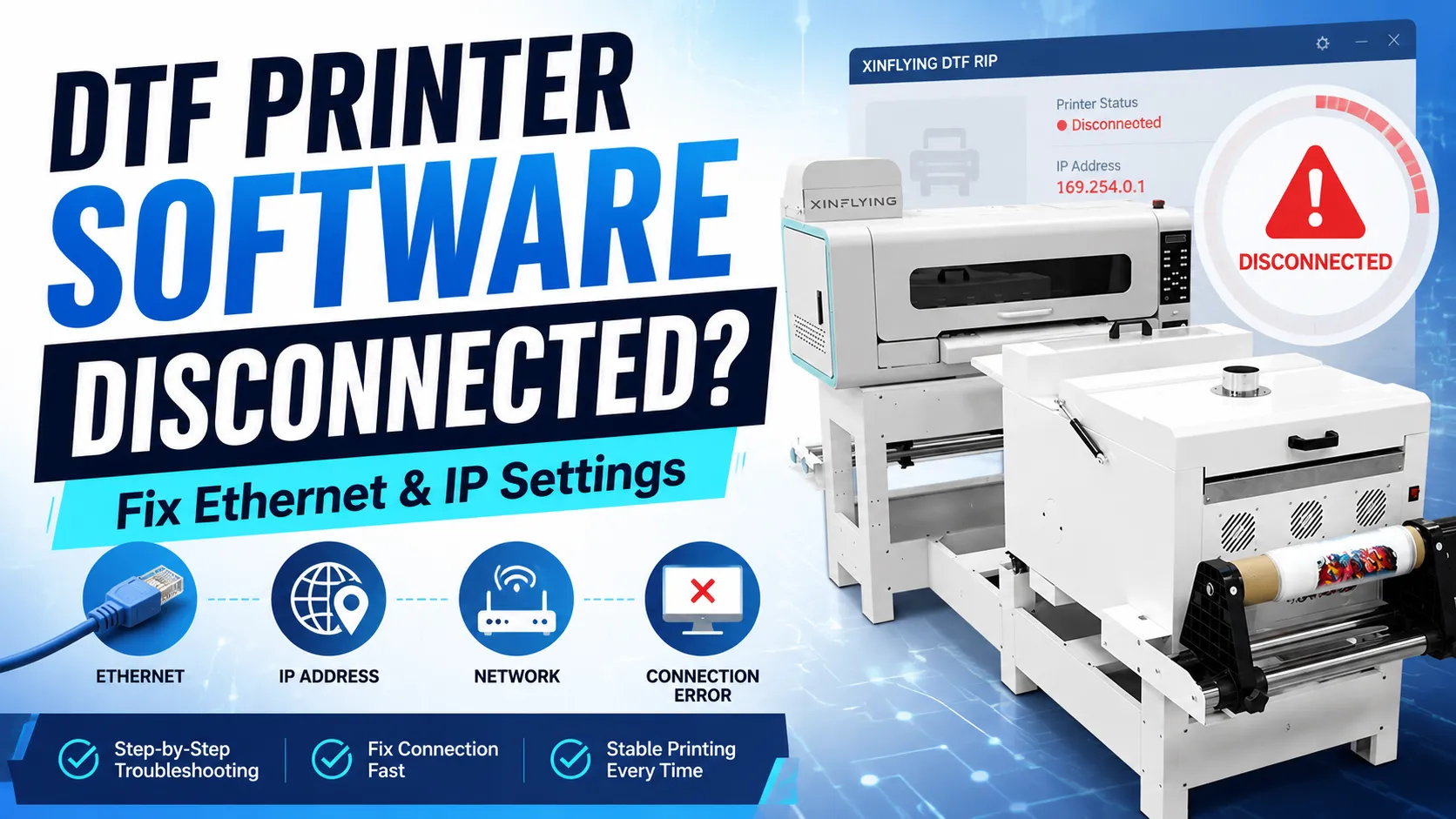
Программное обеспечение DTF-принтера связывает ваш рабочий процесс подготовки макетов с принтером, но сообщение «disconnected» (нет подключения) может остановить производство ещё до начала задания. Если управляющее ПО принтера XINFLYING A2 не может подключиться, сначала убедитесь, что принтер включён и готов к работе. Затем проверьте совместимость ПО, Ethernet-кабель, статические настройки IPv4 компьютера и сетевой порт.
Сервисный FAQ для модели A2 также требует подключения по Gigabit Ethernet и указывает проверить сетевой порт главной платы, если предыдущие проверки пройдены. Следуйте настройкам именно для вашей модели принтера и контроллера, а не копируйте значения с другого оборудования.
Не копируйте IP-адрес модели A2 в другой принтер без подтверждения. Статические значения IP, версия ПО контроллера и требования к сетевому адаптеру могут различаться в зависимости от модели принтера и конфигурации контроллера.
Что такое программное обеспечение DTF-принтера?
Под программным обеспечением DTF-принтера могут пониматься две части рабочего процесса DTF:
- RIP-ПО обрабатывает макеты, цветовые профили, слои белых чернил, каналы чернил и вывод на печать.
- Управляющее ПО принтера обменивается данными с контроллером принтера, применяет настройки машины и отправляет либо управляет заданиями печати.
Предупреждение «disconnected» обычно указывает на канал связи между управляющим ПО, компьютером и принтером. Это не означает автоматически, что RIP-ПО или главную плату принтера нужно заменять.
Почему ПО DTF-принтера показывает «disconnected»?
Распространённые причины:
- принтер выключен, ещё запускается или остановлен тревогой контроллера;
- установленная версия ПО не соответствует контроллеру;
- Ethernet-кабель ослаблен или повреждён;
- компьютер и принтер используют несовместимые или дублирующиеся IP-адреса;
- компьютер подключён через неподдерживаемый сетевой порт или адаптер; или
- сетевой порт главной платы принтера повреждён или нестабилен.
Проверяйте эти причины по порядку. Начав с питания, совместимости и физического подключения, можно избежать ненужной установки ПО или замены платы.
Диагностика подключения по уровням
Двигайтесь от простейшего физического состояния к программной и аппаратной локализации неисправности.
| Уровень | Что проверить | Какие данные собрать |
|---|---|---|
| Принтер | Питание, готовность и отсутствие тревоги платы | Фото панели управления или короткое видео запуска |
| ПО | Нужная программа и версия для контроллера | Название и версия ПО, скриншот ошибки |
| Кабель | Надёжное подключение и отсутствие видимых повреждений | Фото кабеля и портов |
| Сеть компьютера | Правильный Ethernet-адаптер и статические значения IPv4 | Скриншот свойств адаптера |
| Порт принтера | Поведение линка и физическое состояние | Светодиоды порта и крупный план разъёма |
Зафиксируйте текущие сетевые значения до любых изменений. Изменение не того адаптера или назначение дублирующего IP может отключить другое устройство.
1. Убедитесь, что принтер включён и готов
Контроллер не может принять подключение ПО, пока принтер выключен, ещё загружается или остановлен по неисправности уровня платы. Убедитесь, что обычная последовательность запуска завершается и что не появляется предупреждение от головной платы или главной платы.
Если машина выдаёт код, мигает светодиод платы или запуск не завершается, сначала диагностируйте именно это состояние. Изменение сетевых настроек не починит контроллер, который не работает штатно.
2. Проверьте версию ПО и контроллера
FAQ для модели A2 относит версию ПО к ранним проверкам. Убедитесь, что установленное управляющее ПО принтера — это версия, поставляемая или одобренная именно для вашего контроллера и прошивки.
Не существует единого ПО для DTF-принтера, которое работало бы с любым оборудованием. Перед установкой или обновлением ПО проверьте:
- модель принтера и плату контроллера;
- версию прошивки контроллера;
- одобренное управляющее ПО принтера и его версию;
- совместимость RIP-ПО; и
- поддерживаемую версию Windows и сетевые требования.
Выбирайте ПО на основании документированной совместимости, нужных функций рабочего процесса и доступной техподдержки — а не по похожему интерфейсу или посторонней странице загрузки.
Зафиксируйте:
- название и версию приложения;
- выбранный профиль принтера или контроллера;
- версию Windows;
- работало ли подключение ранее; и
- любые изменения ПО, прошивки или компьютера, сделанные до сбоя.
Не устанавливайте случайной драйвер или пакет контроллера от постороннего принтера. Похожий интерфейс не гарантирует совместимости по протоколу или прошивке.
3. Проверьте Ethernet-кабель и подключение
Переподключите кабель на компьютере и принтере в состоянии оборудования, указанном руководством. Осмотрите фиксаторы штекеров, корпус разъёма, оболочку кабеля и порт на предмет повреждений или загрязнений.
Если возможно, проверьте с заведомо исправным кабелем нужной категории и длины. При локализации неисправности избегайте непроверенных соединителей и сложной офисной сети. Прямое подключение принтера к компьютеру может быть уместно, если это предусмотрено руководством по настройке модели.
4. Проверьте статический IPv4-адрес компьютера
Принтер и компьютер должны находиться в совместимых сетевых адресах и не использовать один и тот же адрес.
Настройка для модели A2: прилагаемый FAQ указывает 192.168.127.11 как IP-адрес компьютера. Там сказано, что первые три группы цифр должны совпадать с сетью принтера, а последняя не должна быть 10 — она зарезервирована в этой конфигурации. Перед применением этого значения уточните задокументированный IP-адрес принтера, маску подсети и точную версию контроллера или прошивки. Относитесь к этому значению как к сервисной информации для модели A2, а не как к общему умолчанию для всей серии.
Перед изменением адаптера:
- Сохраните скриншот текущих IPv4-адреса, маски подсети, шлюза и настроек DNS.
- Определите физический Ethernet-адаптер, подключённый к принтеру.
- Уточните задокументированный IP-адрес принтера, маску подсети и требования к шлюзу.
- Назначьте задокументированный адрес компьютера либо другой одобренный уникальный адрес в нужной подсети.
- Не измените по ошибке Wi-Fi или другой адаптер рабочей сети.
Если компьютер находится в ведении IT-отдела, получите согласование перед изменением сетевых настроек.
5. Используйте требуемую скорость сетевого порта
FAQ для модели A2 указывает, что подключение компьютера должно идти через порт Gigabit Ethernet, и предупреждает, что порт 100 Мбит/с может не подключаться или работать нестабильно. Уточните требование для вашей модели перед покупкой адаптера.
При использовании одобренного адаптера USB-Ethernet убедитесь, что Windows стабильно его распознаёт и что энергосберегающее поведение не отключает его во время печати. Сохраните модель адаптера и сведения о драйвере в карточке поддержки.
6. Осмотрите сетевой порт главной платы
Если принтер готов, одобренное ПО установлено, кабель заведомо исправен, а настройки IPv4 верны, то сетевой порт Ethernet главной платы — следующий компонент для проверки.
Отключив питание принтера и изолировав его согласно сервисной процедуре, проверьте:
- ослабление или повреждение корпуса порта;
- погнутые или загрязнённые контакты;
- штекер, который не фиксируется;
- признаки натяжения кабеля.
После физического осмотра восстанавливайте питание только по одобренной процедуре. Если в модели есть светодиоды линка Ethernet, зафиксируйте, остаются ли они выключенными, горят штатно или ведут себя нестабильно во время контролируемого теста подключения.
Ремонт или замену на уровне платы выполняйте только после подтверждения для конкретной модели. Сетевые порты являются частью системы управления, и замена платы может потребовать настройки или работ с прошивкой. Если предыдущие проверки пройдены, но подключение всё равно не работает, отправьте данные в службу поддержки XINFLYING до замены платы.
Если подключение нестабильно
При нестабильном линке нужны данные с момента сбоя. Отметьте, происходит ли отключение:
- когда каретка начинает движение;
- после фиксированного периода бездействия;
- когда подключается другой сетевой адаптер;
- только при крупных заданиях печати; или
- после перемещения кабеля или разъёма.
Такая хронология помогает отделить натяжение кабеля, энергосберегающее поведение адаптера, конфликт IP и нестабильность контроллера.
FAQ по ПО DTF-принтера
В рабочем процессе DTF обычно применяется RIP-ПО для подготовки макетов и вывода по каналам чернил, а также ПО контроллера или интерфейс принтера для обмена данными с машиной. Точное сочетание зависит от модели принтера, контроллера, прошивки и производственного процесса.
Нет. ПО должно поддерживать принтер, контроллер, прошивку и нужную конфигурацию каналов чернил. Перед установкой другой версии подтвердите совместимость с производителем принтера или авторизованным поставщиком.
Подключённый кабель не подтверждает рабочий сетевой линк. Неверные статические настройки IPv4, дублирующийся IP-адрес, неподдерживаемый адаптер, несовместимость ПО или повреждённый порт главной платы всё равно могут мешать обмену данными.
Обычно нет. Зафиксируйте текущую версию и ошибку, затем проверьте питание принтера, тревоги контроллера, состояние кабеля, настройки IP и поведение порта. Переустанавливайте ПО только когда одобренная процедура диагностики выявит отсутствующее, повреждённое или несовместимое ПО.
Помощь по ПО DTF-принтера и сетевым настройкам
Различные конфигурации DTF-принтеров XINFLYING могут использовать разные контроллеры и сетевые настройки. Если ПО по-прежнему показывает «disconnected», отправьте в XINFLYING модель принтера, версию ПО, скриншоты сетевых настроек и результаты тестов кабеля или порта, чтобы подтвердить правильные настройки и следующий тест.